If you have an API that needs to work with both user and app access tokens, and you have deployed the API so it can use Entra Managed Identity, then you encounter the problem that Managed Identity can’t expose scopes. This means the scopes in the user tokens needs another solution. The solution is to let the API use Managed Identity when there is an app access token calling it and use the on-behalf-of flow (OBO) when it is a user who is calling the API.
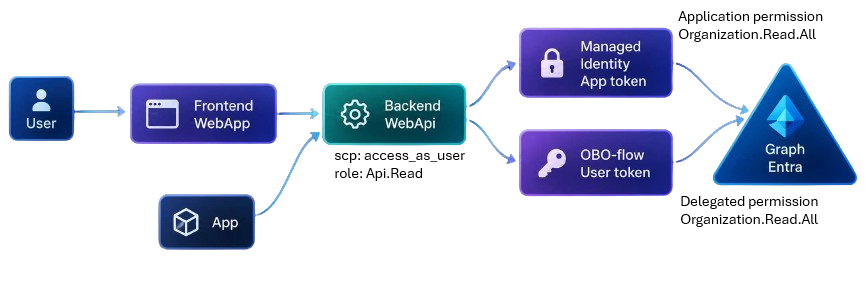
The the above diagram has the following components:
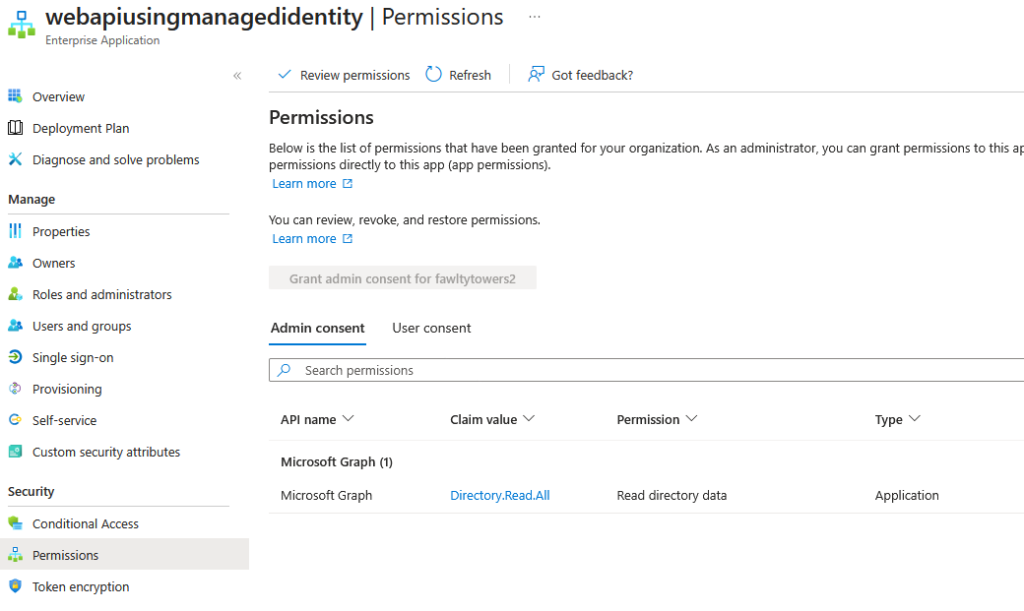
- Managed Identity service principal has the Graph Organization.Read.All granted as an Application permission.
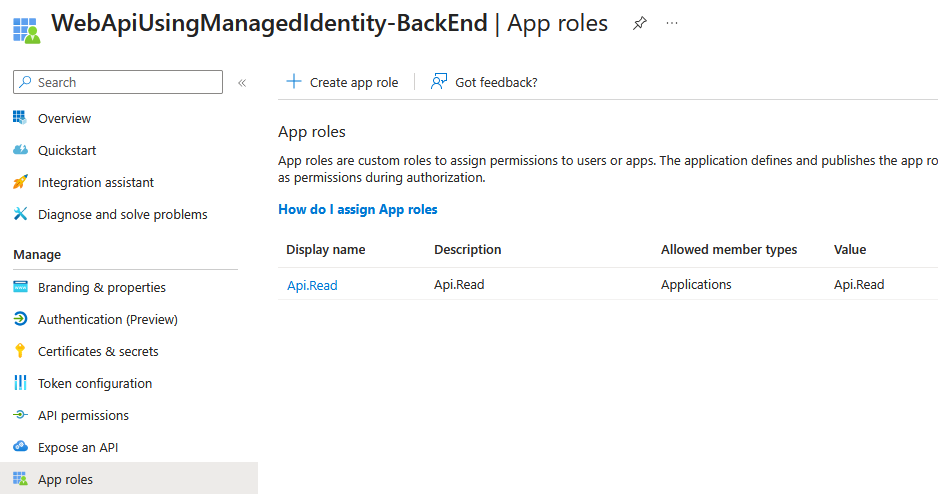
- Backend WebApi exposes the appRole Api.Read and the scope access_as_user, and has Graph Organization.Read.All granted as an Delegated permission
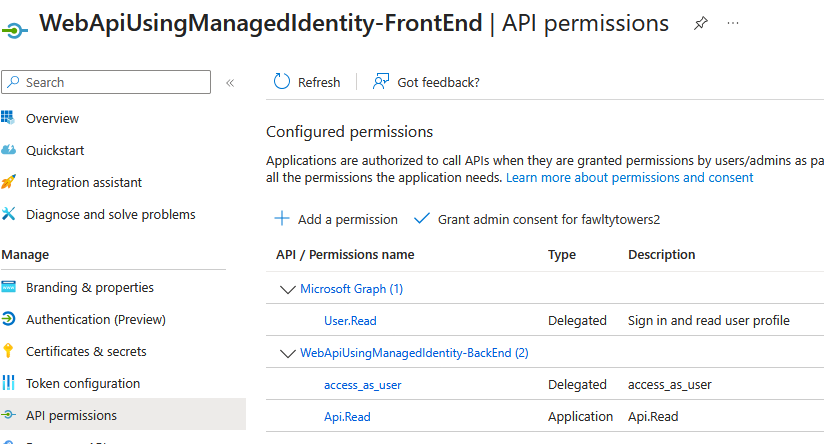
- Frontend WebApp has the API permission of Delegated access_as_user and Application Api.Read to the Backend WebApi.
Different API calling paths
- Api being called with an app token – Backend WebApi sees the appRole Api.Read and makes the Graph call using the Managed Identity
- Api being called with a user token – Backend WebApi sees the scope access_as_user, makes an on-behalf-of token exchange (OBO-flow) and makes the Graph call using the user’s access token. If the user doesn’t have the required permission for the Graph object being requested, the OBO-flow will fail and an 401 Unauthorized will be returned. The OBO-flow will also fail if it requests a delegated permission that the Backend WebApi hasn’t been granted.
In order to make the above solution work, the Backend WebApi needs to authenticate the caller and distinguish if it is a user or app token and proceed differently when calling the downstream API (Graph in this example). Let’s look at how to achieve this.
There is a github repo here with accompanying sample code and scripts.
What is the benefit of this solution?
By using Managed Identity for app tokens and OBO-flow for user tokens, there needs to be no client secret or certificate for the Bankend WebApi. Not having a client secret/certificate means that there is nothing that can get lost and there is nothing that needs to be rotated periodically. The solution is less risky.
Instantiating the GraphServiceClient
If the WebApi is working with Graph, you are likely to use GraphServiceClient, assuming your working with aspnet and C#. The below code checks the configuration to see if it is configured to use Managed Identity at all and if it is an app token calling (see !IsUserToken). If so, it proceeds to use Managed Identity. If not, (else) if uses client credentials. Why client credentials? If the WebApi is configured not to use Managed Identity, it falls back on client credentials. This is what happens if you run a local debugging session.
public GraphClientService( IConfiguration configuration, ILogger<GraphClientService> log
                            , IHttpContextAccessor httpContextAccessor, ITokenAcquisition? tokenAcquisition = null) {
    _log = log;
    _configuration = configuration;
    _httpContextAccessor = httpContextAccessor;
    _tokenAcquisition = tokenAcquisition;
    var authMode = configuration["Entra:Graph:AuthMode"];
    var clientId = configuration["Entra:Graph:ClientId"];
    if (null != authMode && authMode!.StartsWith("ManagedIdentity") && !IsUserToken() ) {
        // system-assigned vs user-assigned managed identity
        if ( authMode.Contains("User", StringComparison.OrdinalIgnoreCase)) {
            _tokenCredential = new ManagedIdentityCredential(ManagedIdentityId.FromUserAssignedClientId(clientId));
            _authMode = $"ManagedIdentity:User:{clientId}";
        } else {
            _tokenCredential = new ManagedIdentityCredential(ManagedIdentityId.SystemAssigned);
            _authMode = $"ManagedIdentity";
        }
    } else {
        _tokenAcquisition = tokenAcquisition ?? throw new InvalidOperationException( "ITokenAcquisition is required.");
        var options = new ClientSecretCredentialOptions { AuthorityHost = AzureAuthorityHosts.AzurePublicCloud };
        _tokenCredential = new ClientSecretCredential(configuration["Entra:TenantId"], clientId, configuration["Entra:Graph:ClientSecret"], options);
        _authMode = $"ClientCreds:{clientId}";
    }
    _graphClient = new GraphServiceClient(_tokenCredential, _scopes);
}
Methods that makes Graph API calls then looks something like below where they always make an attempt to do the OBO-flow exchange with the scopes required for the user. If the user doesn’t have the scopes required, or need to consent to them being used by this app, an exception will be thrown that needs to be returned to the calling app.
public async Task<List<Microsoft.Graph.Models.Organization>?> GetOrganizationAsync() {
    await OboExchangeTokenAsync(new[] { "Organization.Read.All" });
    var response = await _graphClient!.Organization.GetAsync();
    return response?.Value!;
}
App or User token?
The OBO-flow exchange only happens if it is a user token calling. A user token will contain the ‘scp’ claim. Ap app token will have a ‘roles’ claim. If it is not a user token, it does nothing and continues with the Managed Identity setup in the constructor.
private bool IsUserToken() {
    if (_httpContextAccessor.HttpContext!.User == null) return false;
    var scopeClaim = _httpContextAccessor.HttpContext.User.FindFirst(c => c.Type == ClaimConstants.Scope || c.Type == ClaimConstants.Scp);
    if (scopeClaim == null) return false;
    return true;
}
private async Task OboExchangeTokenAsync(string[] graphScopes) {
    if (!IsUserToken()) return;
    string accessToken = await _tokenAcquisition!.GetAccessTokenForUserAsync(graphScopes);
    _oboFlowTokenProvider = new BaseBearerTokenAuthenticationProvider(new OboFlowTokenProvider(accessToken));
    _graphClient = new GraphServiceClient(_oboFlowTokenProvider);
}
Calling the API as an app and as a user
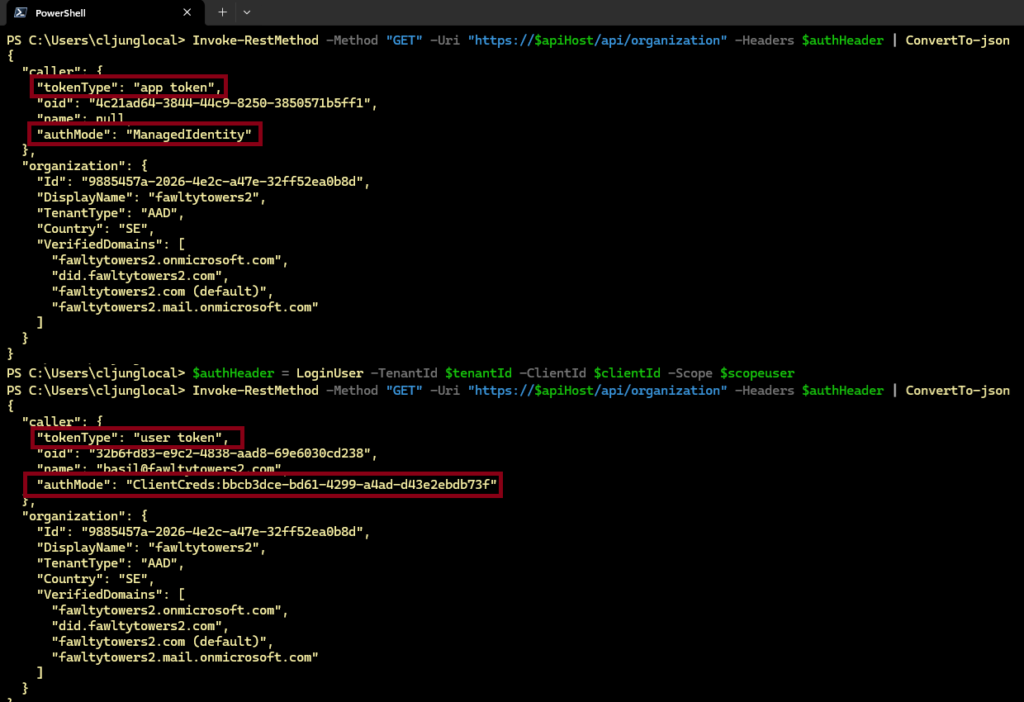
The result of calling the API with a user and an app token will be like below. The API echos back what token type was received and what authentication mode was used for calling Graph. The API also echos back some organizational details of the tenant retrieved via Graph.
Entra Backend WebApi app configuration
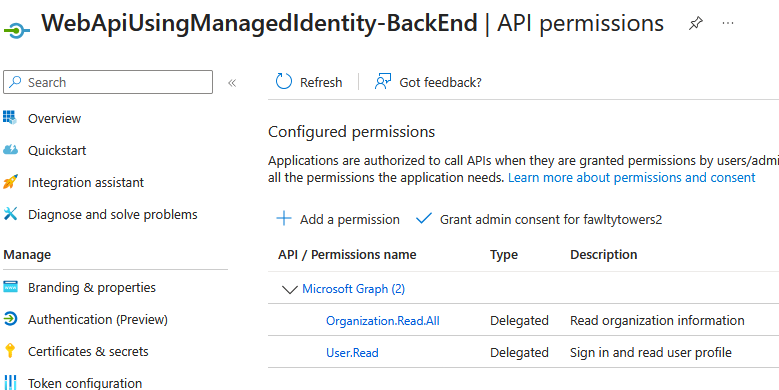
The backend WebApi app registration has a delegated scope for Organization.Read.All so that it’s users are allowed to request that permission via the OBO-flow.
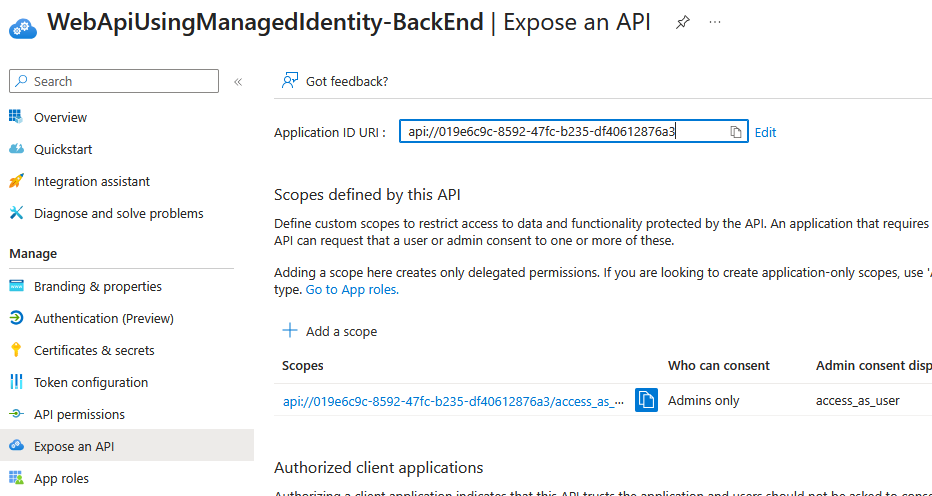
In order for the user to request the correct scope, the app registration has a scope defined as assess_as_user. This scope is what an interactive login request will request.
The app will request a /.default scope which will generate an access token with the app role Api.Read.
Entra Frontend WebApp app configuration
The frontend WebApp adds the exposed scope and app role as API permissions (that an admin grants). This gives the frontend WebApp the permission to request access_as_user as a delegated (user) permission and Api.Read as an application permission.
Azure App Services and Entra Managed Identity configuration
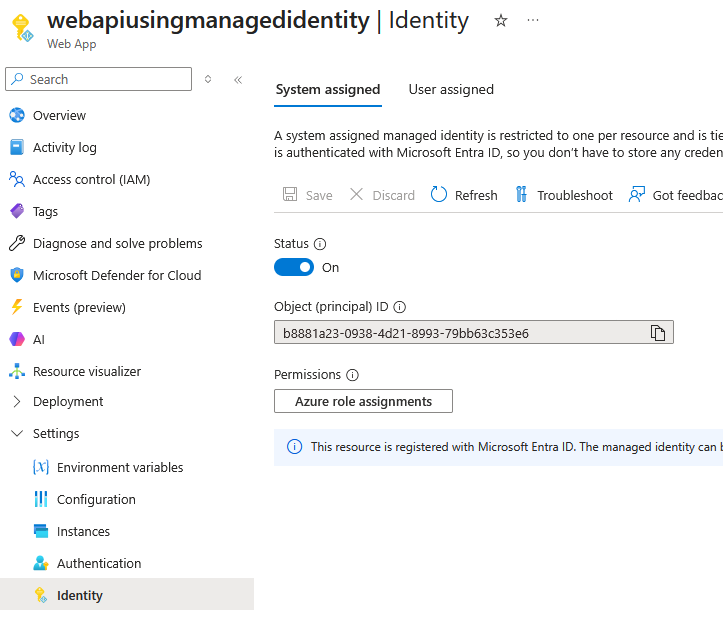
In Azure App Services, where the backend WebApi is deployed, you simply enable the use of Managed Identity. This creates a service principal in Entra.
The Entra service principal can be viewed in the Enterprise apps menu section. However, adding the permissions must be done via powershell. In the below case, the managed identity was granted the rather powerful permission Directory.Reader.All.
Connect-MgGraph -Scopes "Directory.Read.All"

$ManagedIdentityObjectId = "YOUR_FUNCTION_MANAGED_IDENTITY_OBJECT_ID"
$GraphServicePrincipal = Get-MgServicePrincipal -Filter "AppId eq '00000003-0000-0000-c000-000000000000'"

$AppRole = $GraphServicePrincipal.AppRoles | Where-Object {$_.Value -eq "Directory.Read.All" -and $_.AllowedMemberTypes -contains "Application"}

New-MgServicePrincipalAppRoleAssignment -ServicePrincipalId $ManagedIdentityObjectId `
										-PrincipalId $ManagedIdentityObjectId `
										-ResourceId $GraphServicePrincipal.Id `
										-AppRoleId $AppRole.Id